
How to manage your Python project?
And avoid messing up your Linux kernel.

Nowadays, data science projects do not end with the proof of concept; every project has the goal of being used in production. It is important, therefore, to deliver high-quality code. I have been working as a data scientist for more than ten years and I have noticed that juniors usually have a weak level in development, which is understandable, because to be a data scientist you need to master math, statistics, algorithmics, development, and have knowledge in operational development. In this series of articles, I would like to share some tips and good practices for managing a professional data science project in Python. From Python to Docker, with a detour to Git, I will present the tools I use every day.

The other day, a colleague told me how he had to reinstall Linux because of an incorrect manipulation with Python. He had restored an old project that he wanted to customize. As a result of installing and uninstalling packages and changing versions, his Linux-based Python environment was no longer functional: an incident that could easily have been avoided by setting up a virtual environment. But it shows how important it is to manage these environments. Fortunately, there is now an excellent tool for this: uv.
The origin of these two letters is not clear. According to Zanie Blue (one of the creators):
“We considered a ton of names — it’s really hard to pick a name without collisions this day so every name was a balance of tradeoffs. uv was given to us on PyPI, is Astral-themed (i.e. ultraviolet or universal), and is short and easy to type.”
Now, let’s go into a little more detail about this wonderful tool.
Introduction
UV is a modern, minimalist Python projects and packages manager. Developed entirely in Rust, it has been designed to simplify dependency management, virtual environment creation and project organization. UV has been designed to limit common Python project problems such as dependency conflicts and environment management. It aims to offer a smoother, more intuitive experience than traditional tools such as the pip + virtualenv combo or the Conda manager. It is claimed to be 10 to 100 times faster than traditional handlers.
Whether for small personal projects or developing Python applications for production, UV is a robust and efficient solution for package management.
Starting with UV
Installation
To install UV, if you are using Windows, I recommand to use this command in a shell:
winget install --id=astral-sh.uv -eAnd, if you are on Mac or Linux use the command:
curl -LsSf https://astral.sh/uv/install.sh | sudo shTo verify correct installation, simply type into a terminal the following command:
uv versionCreation of a new Python project
Using UV you can create a new project by specifying the version of Python. To start a new project, simply type into a terminal
uv init --python x:xx project_namepython x:xx must be replaced by the desired version (e.g. python 3.12). If you do not have the specified Python version, UV will take care of this and download the correct version to start the project.
This command creates and automatically initializes a Git repository namedproject_name. It contains several files:
A
.gitignorefile. It lists the elements of the repository to be ignore in the git versionning (it is basic and should be rewrite for a project ready to deploy).A
.python-versionfile. It indicates the python version used in the project.The
README.mdfile. It has to purpose to describe the project and explains how to use it.A
hello.pyfile.The
pyproject.tomlfile. This file contains all the informations about tools used to build the project.The
uv.lockfile. It is used to create the virutal environement when you use uv to run the script (it can be compar to the requierements.txt)
Package installation
To install new packages in this nex environement you have to use
uv add package_nameWhen the add command is used for the first time, UV creates a new virtual environment in the current working directory and installs the specified dependencies. A .venv/ directory appears. On subsequent runs, UV will use the existing virtual environment and install or update only the new packages requested. In addition, UV has a powerful dependency resolver. When executing the add command, UV analyzes the entire dependency graph to find a compatible set of package versions that meet all requirements (package version and Python version). Finally, UV updates the pyproject.toml and uv.lock files after each add command.
To uninstall a package, type the command
uv remove package_nameIt is very important to clean the unused package from your environment. You have to keep the dependency file as minimal as possible. If a package is not used or is no longer used, it must be deleted.
Run a Python script
Now, your repository is initiated, your packages are installed and your code is ready to be tested. You can activate the created virtual environment as usual, but it is more efficient to use the UV command run
uv run hello.pyUsing the run command guarantees that the script will be executed in the virtual environment of the project.
Manage the Python versions
It is usually recommended to use different Python versions. As mentioned before the introduction, you may be working on an old project that requires an old Python version. And often it will be too difficult to update the version.
uv python listAt any time, it is possible to change the Python version of your project. To do that, you have to modify the line requires-python in the pyproject.toml file.
For instance: requires-python = ">=3.9"
The, you have to syncronise your environement using the command
uv syncThe command first checks existing Python installations. If the requested version is not found, UV downloads and installs it. UV also creates a new virtual environment in the project directory, replacing the old one.
But the new environment does not have the required package. Thus, after a sync command, you have to type
uv pip install -e .Switch from virtualenv to uv
If you have a Python project initiated with pip and virtualenv and wish to use UV, nothing could be simpler. If there is no requirements file, you need to activate your virtual environment and then retrieve the package + installed version.
pip freeze > requirements.txtThen you have to synchronize your environment using the command
uv init .
uv pip install -r requirements.txt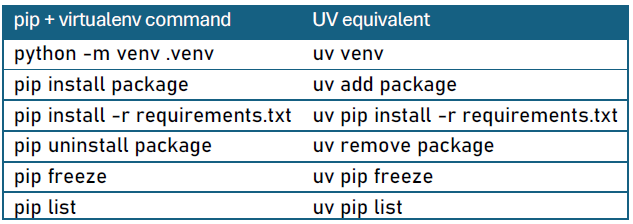
Use the tools
UV offers the possibility of using tools via the uv tool command. Tools are Python packages that provide command interfaces for such as ruff, pytests, mypy, etc. To install a tool, type the command line
uv tool install tool_nameBut, a tool can be used without having been installed
uv tool run tool_nameFor convenience, an alias was created: uvx, which is equivalent to uv tool run. So, to run a tool, just type
uvx tool_nameConclusion
UV is a powerful and efficient Python package manager designed to provide fast dependency resolution and installation. It significantly outperforms traditional tools like pip or conda, making it an excellent choice to manage your Python projects.
Whether you’re working on small scripts or large projects, I recommend you get into the habit of using UV. And believe me, trying it out means adopting it.
References
1 — UV documentation: https://docs.astral.sh/uv/
2 — UV GitHub repository: https://github.com/astral-sh/uv
3 — A great datacamp article: https://www.datacamp.com/tutorial/python-uv
About Seenovate
Seenovate is a French company specializing in Data Intelligence, with expertise in Business Intelligence (BI) and Data Science, certified SAP Gold Partner since 2010. It helps businesses leverage their data by providing tailored solutions to improve decision-making, optimize performance, and drive innovation.
LinkedIn: https://www.linkedin.com/company/seenovategroup/